A mousepad can change how a desk feels during ordinary work, study, browsing, or creative sessions. The right choice gives your mouse a predictable area to move across, stays in place, and fits without forcing your keyboard, notebook, or drink into awkward corners. This mousepad selection guide focuses on the decisions that matter in a real setup: available space, movement style, surface feel, edge comfort, stability, appearance, and cleaning. You do not need the largest or most elaborate pad; you need one that matches how you use your desk.
Start with your desk and movement style
Measure the surface before shopping. Clear the space where the pad will sit, then measure the usable width from the keyboard or laptop to the desk edge and the usable depth from the monitor stand or notebook to the front edge. Leave a little breathing room so the pad does not press against a wall, lamp base, or desk organizer. A quick paper outline is useful: cut or fold paper to the approximate pad size and test whether your mouse still has a comfortable path.
Next, observe how you move the mouse. If you mostly use a laptop trackpad or make small pointer movements, a compact pad can be enough. If you use a separate mouse and sweep your forearm across the desk, prioritize width and clear space. Low sensitivity settings often require more travel than high sensitivity settings, but the practical test is simple: move from one side of your screen to the other several times without lifting the mouse. If you keep running off the edge, you need more usable area or a different pointer setting.
A pad should also work with the rest of your routine. For example, a student might need room for a 13-inch laptop, a notebook, and a mouse. Someone working beside a full-size keyboard may want the pad to sit beside the keyboard rather than underneath it. A narrow desk may favor a compact rectangle, while a deep desk can accommodate a larger movement zone. Do not choose by dimensions alone; compare the listed size with your actual clear space.
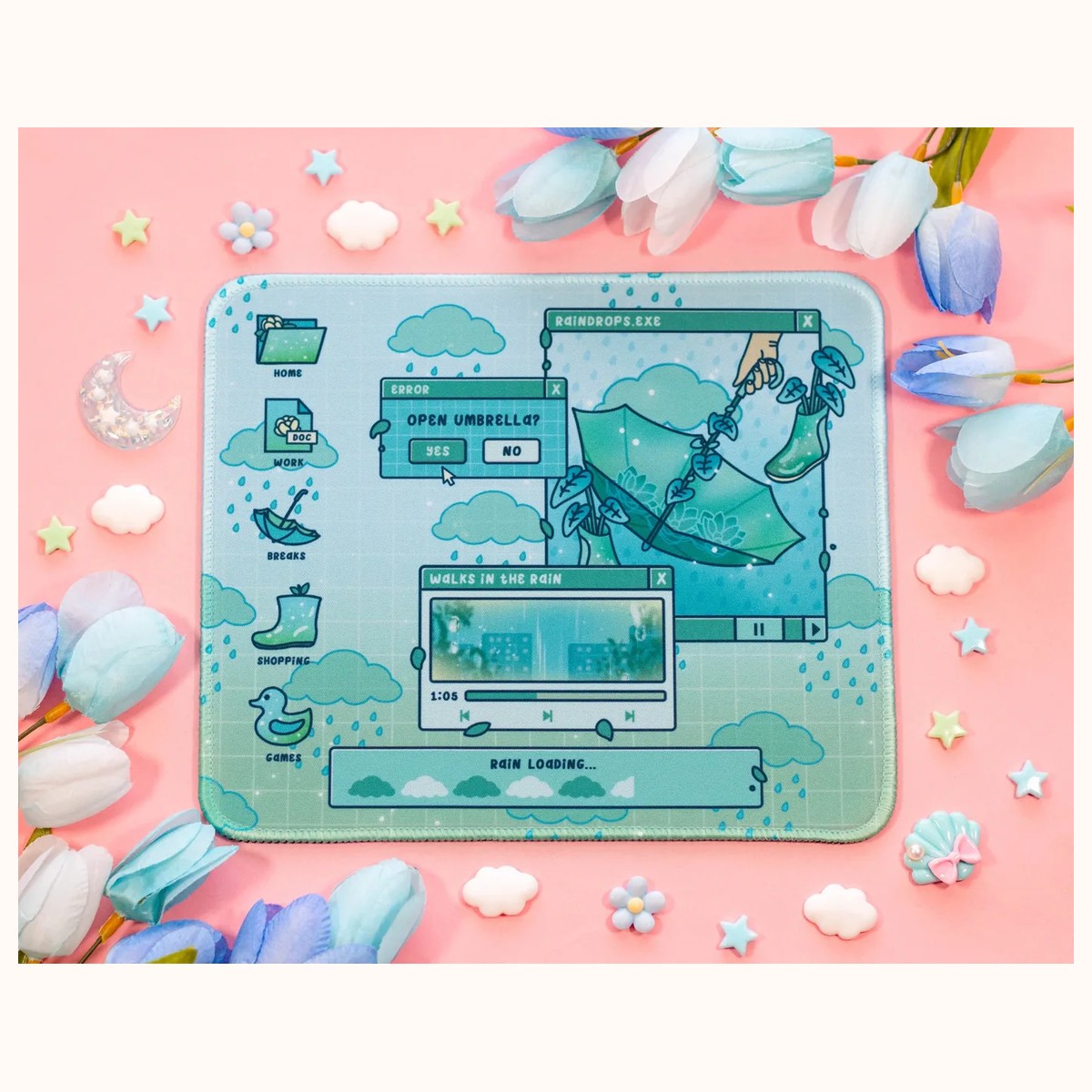
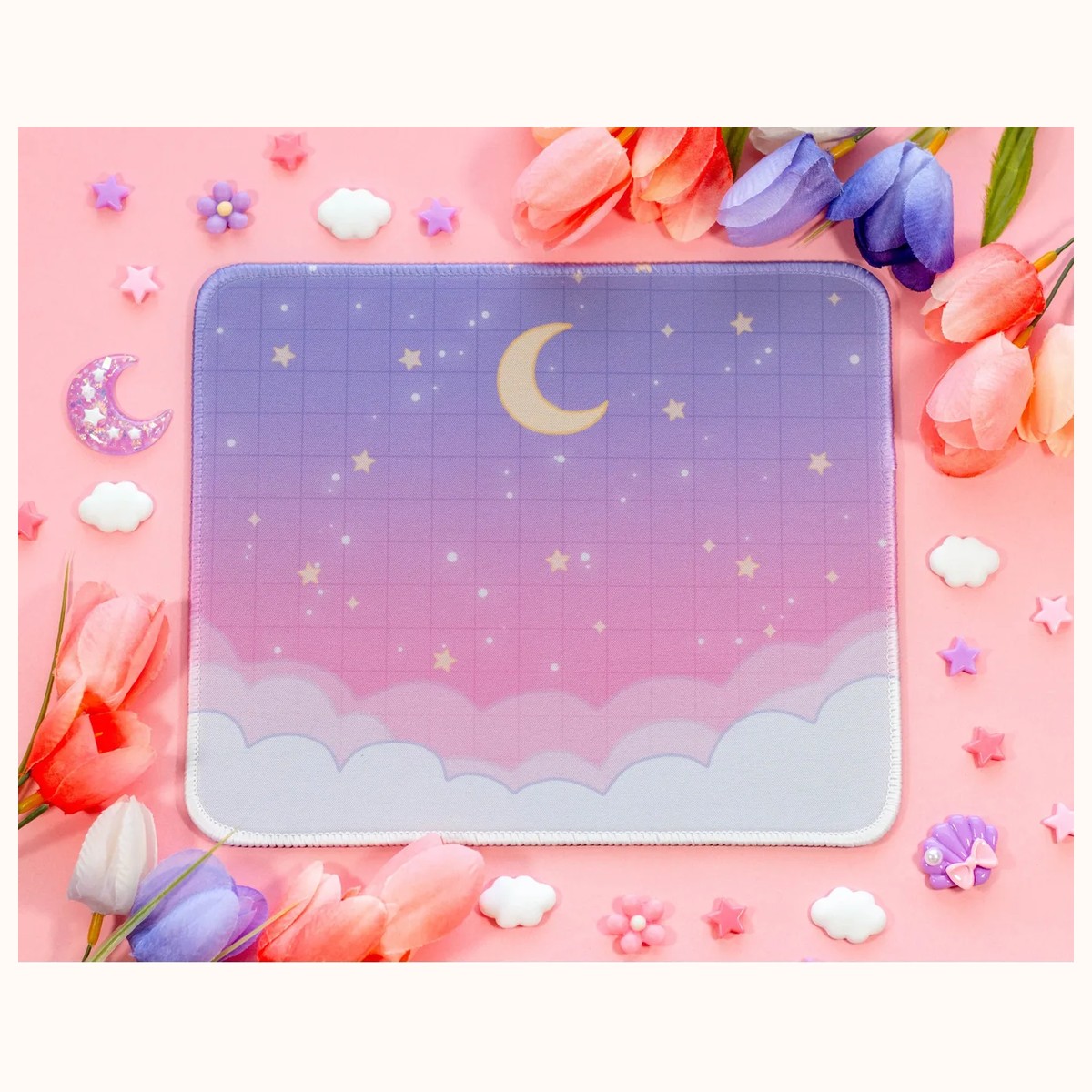
For a compact everyday option, the mousepads collection includes the Starry Clouds Cute Mousepad, listed at 8 in x 9.5 in. That footprint can suit a small workstation or a desk where the mouse area needs to share space with notebooks. The same size is listed for the Rainy Day Cute Mousepad, making it easier to compare design preference without changing the basic desk plan. Check your available area and current product listing before ordering, since desk layouts and product details can change.
Choose surface feel, thickness, and edge comfort
Surface feel affects control and comfort more than decoration does. A woven fabric top generally feels softer under the hand than a hard, rigid surface, though the exact feel can vary. If your wrist rests on the pad for long periods, pay attention to whether you prefer a smooth glide or a little more texture. You can estimate your preference by comparing familiar objects: a smooth notebook cover suggests you may prefer less texture, while a fabric desk mat may feel more natural if you like a softer contact point.
Thickness is a fit decision, not automatically a quality ranking. A low-profile pad creates a smaller height change between the desk and mouse, which can feel unobtrusive beside a laptop or slim keyboard. A thicker pad may feel more cushioned, but it can create a noticeable step at the edge and may catch against a notebook. If your wrist frequently crosses the front edge, select a profile that feels easy to pass over. The Starry Clouds Cute Mousepad and Rainy Day Cute Mousepad are each listed as 1/8 inch thick, a low-profile dimension suited to a compact setup.
Consider the edge treatment as well. Reinforced or stitched edges can help define the perimeter and may be preferable if the pad will be moved often. They can still feel noticeable if your hand rests directly on the border, so position the pad so the mouse occupies the central area rather than the last inch of space. If the edge curls after unpacking, lay the pad flat under light, evenly distributed books for a while and avoid sharply folding it. If curling persists, contact the store rather than trying heat or aggressive pressing.
A comfortable setup also depends on posture. Keep the mouse close enough that your shoulder can remain relaxed instead of reaching outward. If your wrist bends sharply at the desk edge, move the chair and pad together or raise the chair slightly if appropriate. A mousepad cannot correct an awkward desk height, but the right thickness and placement can prevent it from adding another uncomfortable transition.
Check grip, placement, and daily stability
A mousepad that slides is distracting even when its surface feels good. Look for a backing described as non-skid or otherwise intended to hold the pad against the desk. The two Farouk Book Store examples above list a non-skid rubber backing. That is useful for ordinary mouse movement, but stability still depends on the desk: dust, crumbs, moisture, glossy finishes, and uneven surfaces can reduce grip.
Before judging the pad, clean the desk and place it flat. Align one edge with a desk edge or keyboard so you can quickly notice movement. Make several normal movements, then deliberately make a wider sweep. If the pad shifts, check whether a cable is pulling it, a notebook is resting partly on its edge, or the desk surface is damp. Remove the cause before deciding the backing is inadequate. If it still moves on a clean, dry surface, verify that the pad is fully flat and consider contacting Farouk Book Store for product-specific assistance.
Keep the mouse cable, charging lead, and notebook from crossing the active area. A cable brushing the mouse can feel like a surface problem, while a notebook corner can create a bump that interrupts movement. If you use a wireless mouse, leave enough room to lift and reposition it without hitting a monitor stand or pen cup. For a small desk, place the pad parallel to the front edge and keep frequently used notes just outside the movement zone.
Printed designs are part of the choice because the desk is a visual workspace. The Starry Clouds Cute Mousepad offers a starry-cloud motif, while the Rainy Day Cute Mousepad uses an illustrated rainy-day design. Select the one that works with your lighting and surrounding colors, but do not assume a darker or busier design will hide every mark. Product colors may appear different from photos because of lighting, photography, printing, and screen settings. Treat the images as a design reference, not a guarantee of exact color.
Build a care routine and troubleshoot problems
Start with the care directions listed for the specific product. Both compact examples are described as hand washable with soap and lukewarm water, followed by air drying; a soft-bristle brush can be used for gentle spot treatment. That means routine care should be gradual rather than harsh. Unplug or move electronics away from the area, shake off loose debris, and spot-clean a small mark first. Avoid soaking the pad unless the listing specifically allows it, and let it dry fully before placing a mouse or equipment on top.
For a fresh spill, blot rather than scrub. Rubbing can spread a mark through the fabric or disturb printed areas. Use a small amount of mild soapy water on a soft cloth or brush only when consistent with the product instructions, then remove residue with a lightly damp cloth. Do not use hot water, bleach, solvent, or a hair dryer unless the product instructions explicitly say it is safe. Heat and chemicals can change the surface, backing, or printed appearance.
If the mouse feels inconsistent, troubleshoot in order. First, wipe the mouse sensor and check that no crumbs or fibers are underneath it. Second, make sure the pad is flat and free of a folded corner. Third, test the mouse on the center and edges: if only one area feels different, clean that area gently. Fourth, check whether a glossy desk surface is showing through a damaged or displaced pad. If the issue remains after ordinary cleaning, stop experimenting with abrasive tools and ask the store for help.
If the pad develops an odor after cleaning, allow more air circulation and more drying time; do not seal it in a drawer while damp. If the backing gathers dust and loses grip, clean the desk and the underside according to the listing’s care guidance. If stitching loosens, a corner separates, or the printed surface changes unexpectedly, photograph the issue and contact the store with your order details. This is more useful than cutting the edge or applying glue, which can create a hard spot under the mouse.
Finally, reassess after a week. Is the mouse leaving the usable area? Is your wrist resting on the edge? Is the pad blocking your notebook? Those answers tell you whether the problem is size, placement, thickness, or routine. Use the mousepads category to compare available designs and listed dimensions, and open the Starry Clouds Cute Mousepad product page or Rainy Day Cute Mousepad product page for the product-specific details before making a final choice.
Related reading: How to Choose Stickers for Journals and Planners · 2026 Stationery Trends: Color, Texture, and Joy · How to Build a Personalized Gift Bundle